
Enroll a Southaven Utility Account in AutoPay on MySouthaven
To set up AutoPay for your utility bills, you must first have a MySouthaven profile (see Create a Profile on MySouthaven). After signing in and linking your account (see Link a Utility Account on MySouthaven), follow the steps below to enroll in AutoPay:
- Click Explore Service

- Select Manage AutoPay

- Review the "AutoPay Details" and click Yes, continue AutoPay setup

- If you have multiple accounts linked to your profile, choose the utility account you wish to enroll then click Submit
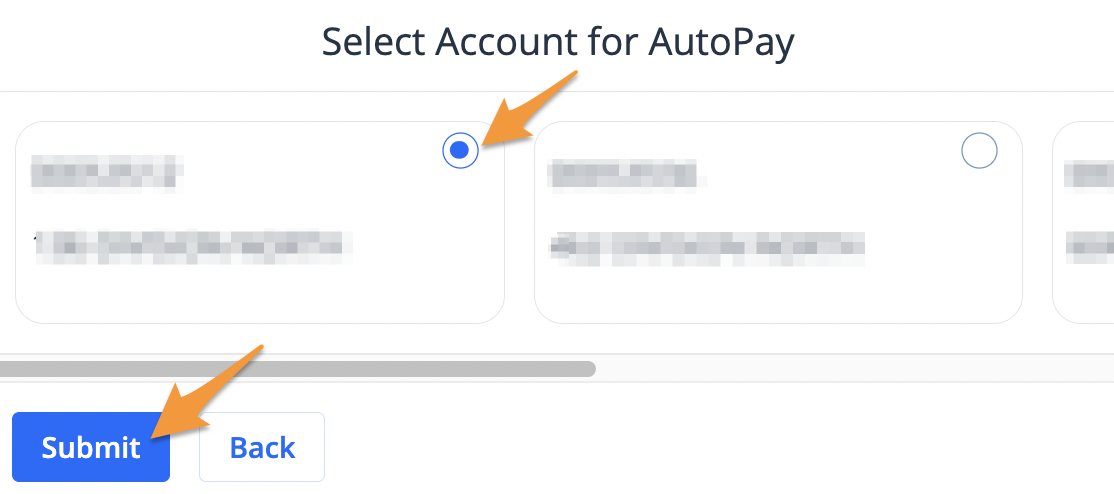
Note: If you only have one account linked to your profile proceed with the next step.
- Confirm the email address associated with your profile by selecting Yes, use this email address

- Select a Payment Method and click Submit
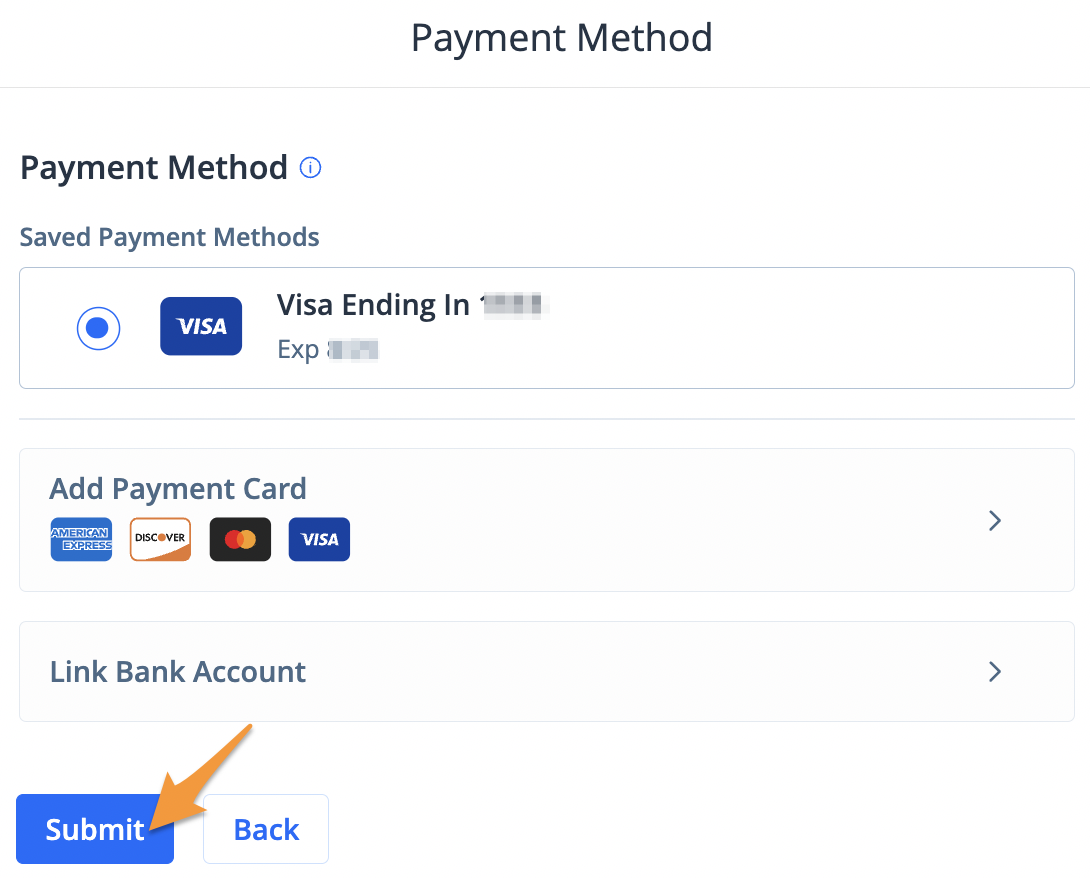
- Review the "AutoPay Enrollment Summary" and select Yes, complete enrollment

You are now enrolled in AutoPay. You will receive an enrollment confirmation and email notifications when a payment is processed.
Related step-by-step guides: