
Change AutoPay Payment Method for a Southaven Utility Account on MySouthaven
Need to change the card or bank account for your AutoPay? Follow the directions below to update your payment method:
- Sign in to the MySouthaven profile used to set up AutoPay and click Explore Service

- Select Manage AutoPay

- Select Change Payment Method

4. If you have multiple accounts enrolled in AutoPay, choose the utility account you wish to update then click Submit
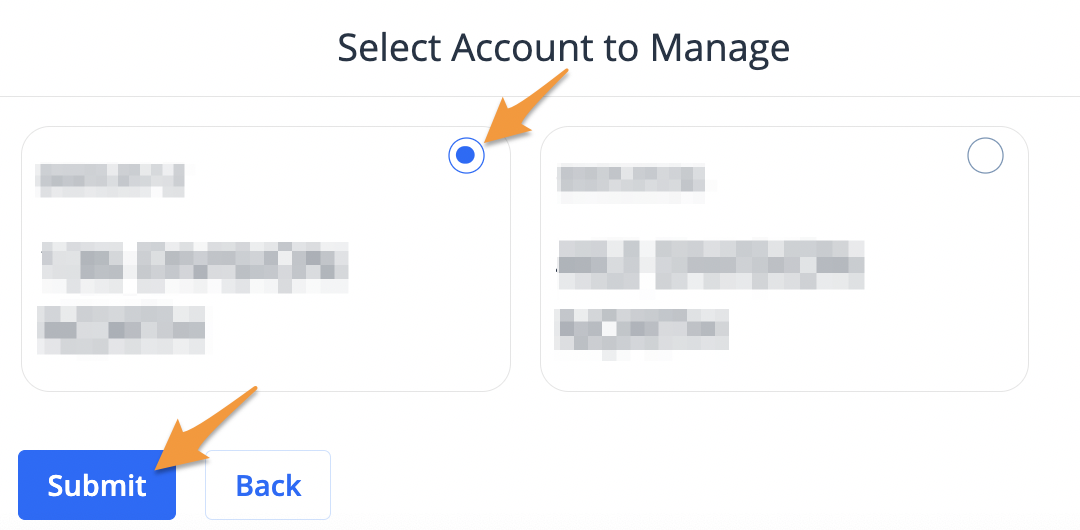
Note: If you only have one account enrolled in AutoPay proceed with the next step.
- Select a Payment Method and click Submit
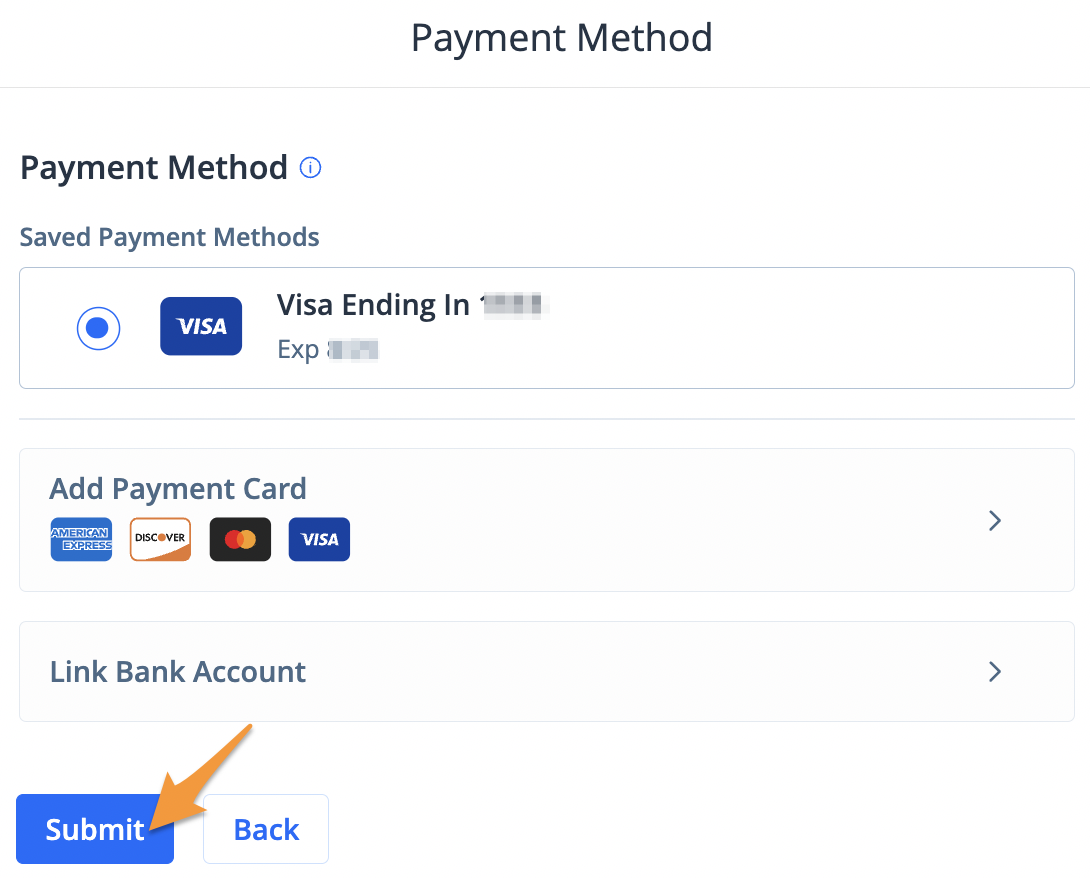
Note: To add a new payment method selectAdd Payment CardorLink Bank Account and enter your payment information.
Your AutoPay has now been updated. You will receive an email confirmation and future payments will be processed using the newly selected payment method.